> ## Documentation Index
> Fetch the complete documentation index at: https://docs.li2.ai/llms.txt
> Use this file to discover all available pages before exploring further.

# Thiết Lập Behavior Analytics Qua Google Tag Manager

> Kết nối Behavior Analytics Li2 với website qua Google Tag Manager để bắt đầu ghi nhận pageviews, click, scroll, session replay và dữ liệu hành vi website.

Behavior Analytics giúp bạn hiểu cách người dùng thực sự tương tác với website — từ lượt xem trang, lượt nhấp, cuộn trang, điền biểu mẫu đến hành trình duyệt web và phiên truy cập.

Trong hướng dẫn này, bạn sẽ thực hiện toàn bộ quy trình thiết lập Behavior Analytics trong Li2 — từ tạo script, gắn vào GTM, xác minh cài đặt đến chọn dữ liệu hành vi muốn sử dụng.

Sau khi hoàn tất, website của bạn sẽ sẵn sàng cho các tính năng như **Heatmap, Funnel Analysis, Session Replay, Form Analytics** và các công cụ phân tích hành vi khác trên Li2.

Bạn có thể cấu hình Li2 để chạy trên:

* Toàn website
* Một page cụ thể
* Landing page hoặc campaign page

Làm theo các bước dưới đây để hoàn tất thiết lập.

## Trước khi bắt đầu

Đảm bảo bạn đã có:

<Columns cols={2}>
  <Column>
    <Card title="Website/App" icon="sparkles">
      Khả năng thêm JavaScript code vào trang web của bạn
    </Card>

    <Card title="Tài khoản Li2 Gói Pro" icon="sparkles">
      Pro plan hoặc cao hơn
    </Card>
  </Column>

  <Column>
    <Card title="GTM Container" icon="sparkles">
      GTM script đã được cài trên website.Quyền chỉnh sửa GTM
    </Card>

    <Card title="GTM Edit Access" icon="sparkles">
      Quyền chỉnh sửa GTM
    </Card>
  </Column>
</Columns>

<Card title="Chưa cài GTM?" type="note" horizontal>
  Hoàn tất thiết lập Google Tag Manager trước, sau đó quay lại hướng dẫn này.
</Card>

## Bước 1: Thiết lập Behavior Analytics trong Li2

<Steps>
  <Step title="Vào màn hình thiết lập">
    * Đăng nhập vào Li2. Từ menu bên trái, Chọn tab **Phân tích hành vi,** nhấn vào **Bắt đầu.**
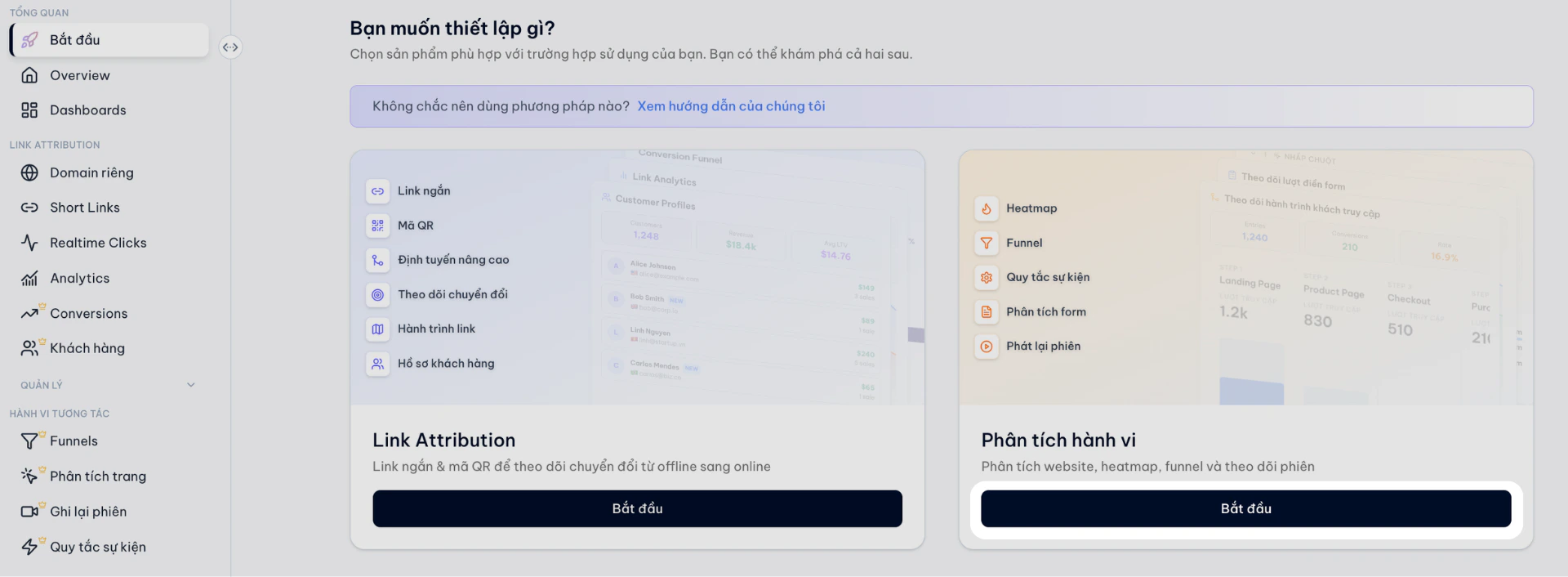
    <Frame>
      <img src="https://mintcdn.com/ftc/7OeFl23nG50E8uhN/images/thiet-lap-behavior-analytics-qua-google-tag-manager-20.png?fit=max&auto=format&n=7OeFl23nG50E8uhN&q=85&s=08d0f57823da524fd0d56f3187834ccf" alt="Thiet Lap Behavior Analytics Qua Google Tag Manager 20" width="1920" height="706" data-path="images/thiet-lap-behavior-analytics-qua-google-tag-manager-20.png" />
    </Frame>

    * Tại màn hình **"Bạn muốn thiết lập gì?"**. Nhấn chọn **Cài đặt script.**

    <Frame>
      <img src="https://mintcdn.com/ftc/yDrqoWLv_BZ5QRnq/images/thiet-lap-behavior-analytics-qua-google-tag-manager-1.png?fit=max&auto=format&n=yDrqoWLv_BZ5QRnq&q=85&s=2ca917e16821462e434c5ef5840443b2" alt="Thiet Lap Behavior Analytics Qua Google Tag Manager 1" width="1920" height="442" data-path="images/thiet-lap-behavior-analytics-qua-google-tag-manager-1.png" />
    </Frame>
  </Step>

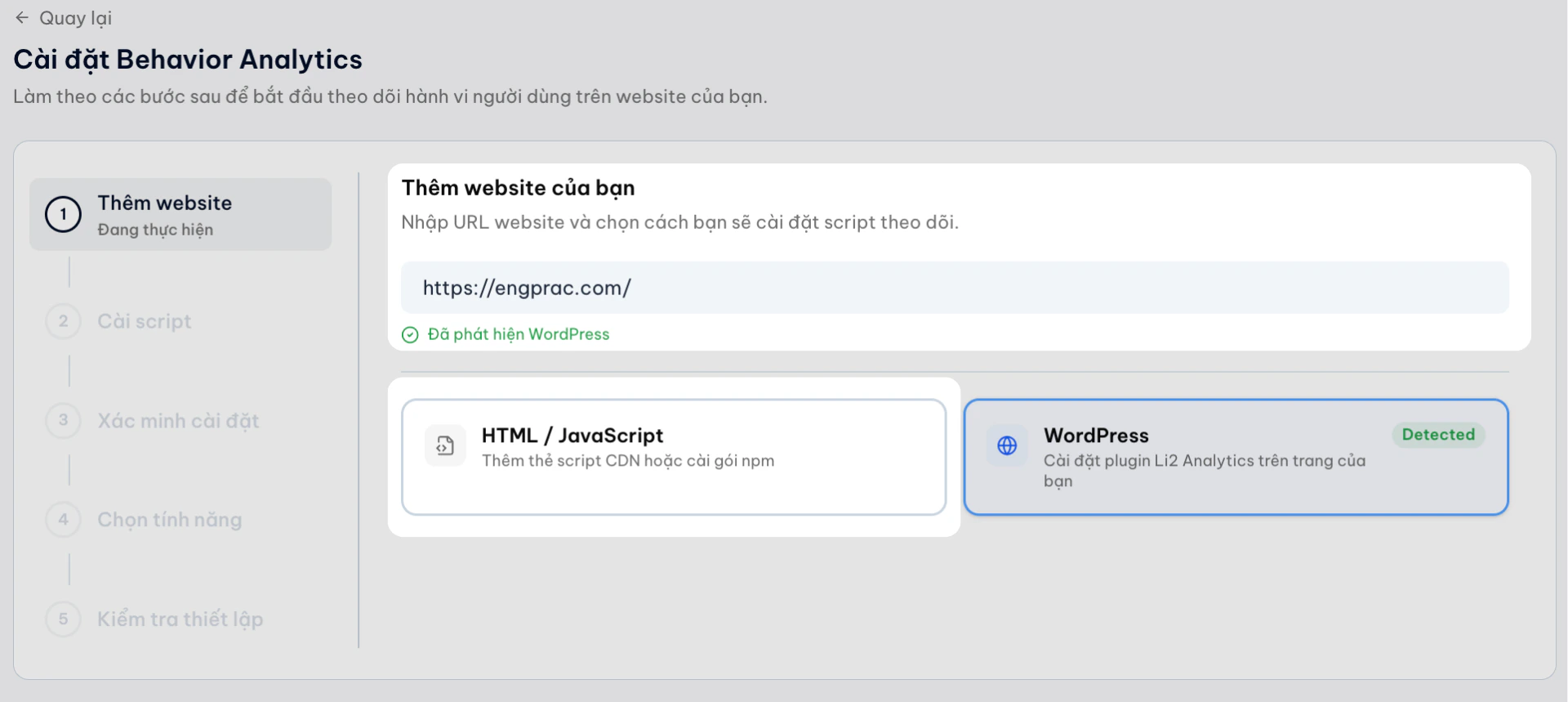
  <Step title="Thêm website">
    * Nhập **URL website** của bạn. Ví dụ: `https://yourwebsite.com`
    * Nhấp vào  `HTML/JavaScript`
    <Frame>
      <img src="https://mintcdn.com/ftc/7OeFl23nG50E8uhN/images/thiet-lap-behavior-analytics-qua-google-tag-manager-21.png?fit=max&auto=format&n=7OeFl23nG50E8uhN&q=85&s=45166070a47fa198eea3a33fe95afa30" alt="Thiet Lap Behavior Analytics Qua Google Tag Manager 21" width="1920" height="859" data-path="images/thiet-lap-behavior-analytics-qua-google-tag-manager-21.png" />
    </Frame>
  </Step>

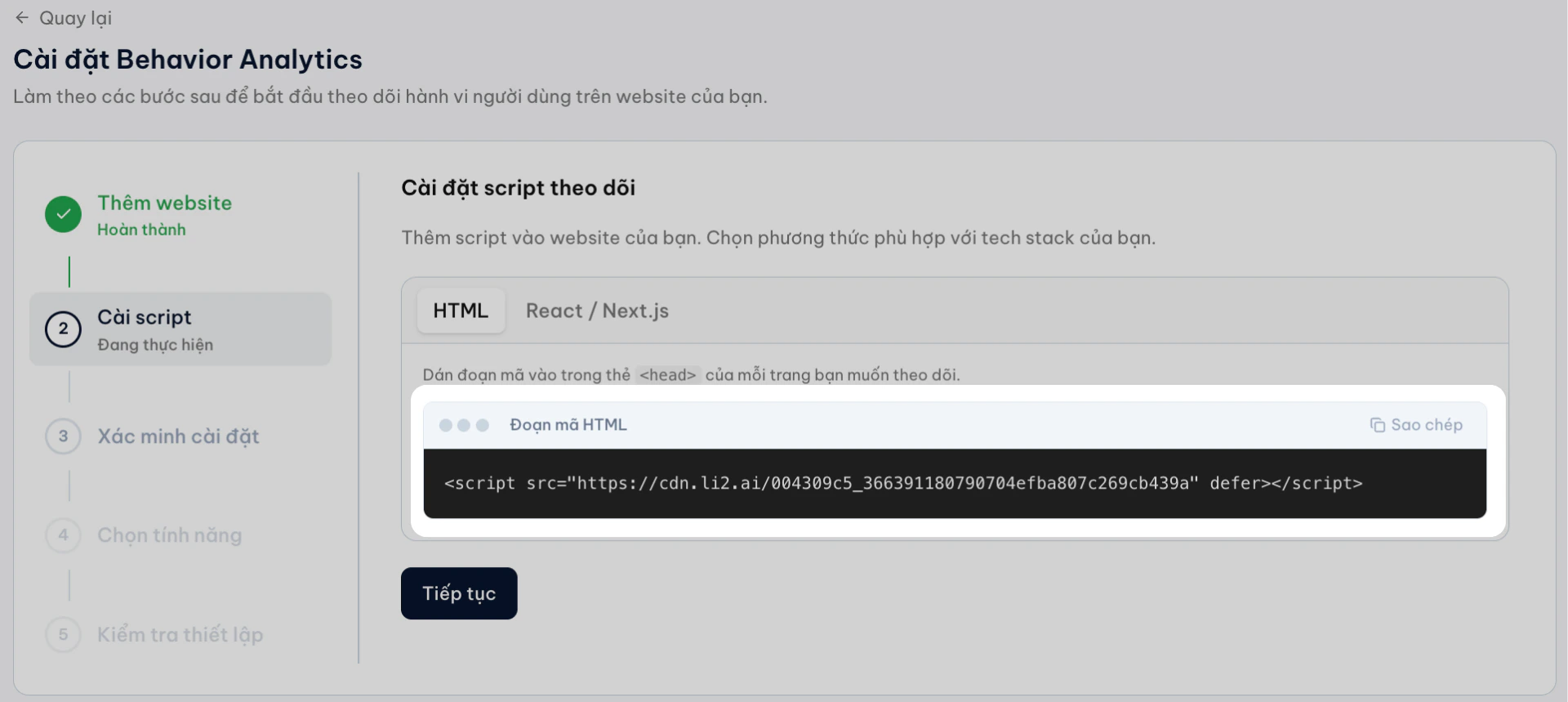
  <Step title="Lấy SDK script Li2">
    * **Tab HTML**:  Nhấn **Sao chép** để copy đoạn script. Chúng ta sẽ dùng script này trong Google Tag Manager ở bước tiếp theo.
    <Frame>
      <img src="https://mintcdn.com/ftc/yDrqoWLv_BZ5QRnq/images/thiet-lap-behavior-analytics-qua-google-tag-manager-3.png?fit=max&auto=format&n=yDrqoWLv_BZ5QRnq&q=85&s=d5a71c6dbe9fc1c5dfd1e494d813ebf6" alt="Thiet Lap Behavior Analytics Qua Google Tag Manager 3" width="1920" height="859" data-path="images/thiet-lap-behavior-analytics-qua-google-tag-manager-3.png" />
    </Frame>
  </Step>
</Steps>

## Bước 2: Tạo tag trong Google Tag Manager

### Lựa chọn 1: SDK Li2 ghi nhận dữ liệu trên toàn bộ website

<Steps>
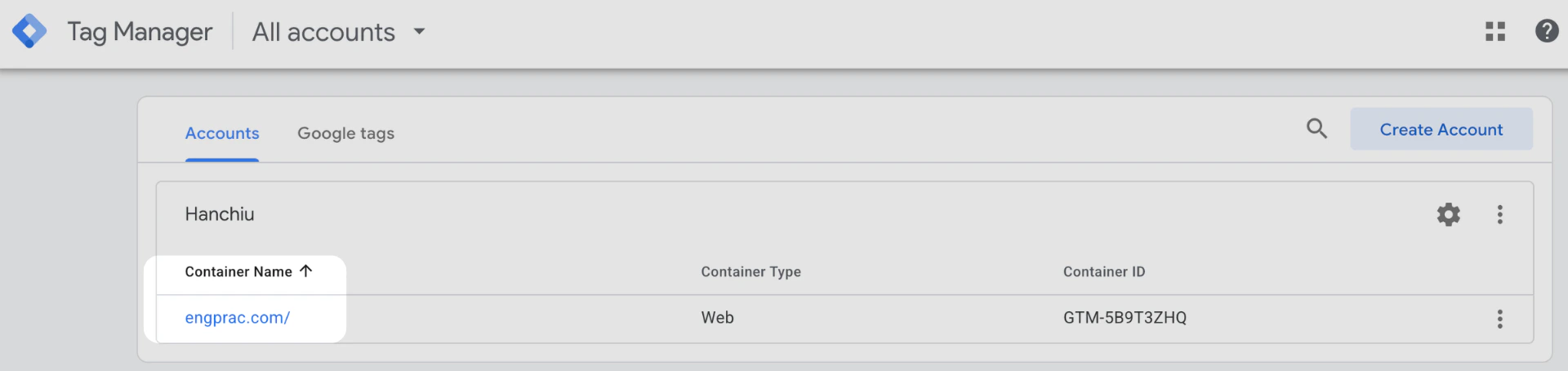
  <Step title="Tạo Custom HTML Tag">
    Mở **Google Tag Manager** và chọn container của website.
    <Frame>
      <img src="https://mintcdn.com/ftc/qw8pTSyx-xVxZPkE/images/thiet-lap-behavior-analytics-qua-google-tag-manager-4.png?fit=max&auto=format&n=qw8pTSyx-xVxZPkE&q=85&s=d15322283e6742abca32eac99566f09f" alt="Thiet Lap Behavior Analytics Qua Google Tag Manager 4" width="1920" height="454" data-path="images/thiet-lap-behavior-analytics-qua-google-tag-manager-4.png" />
    </Frame>
  </Step>

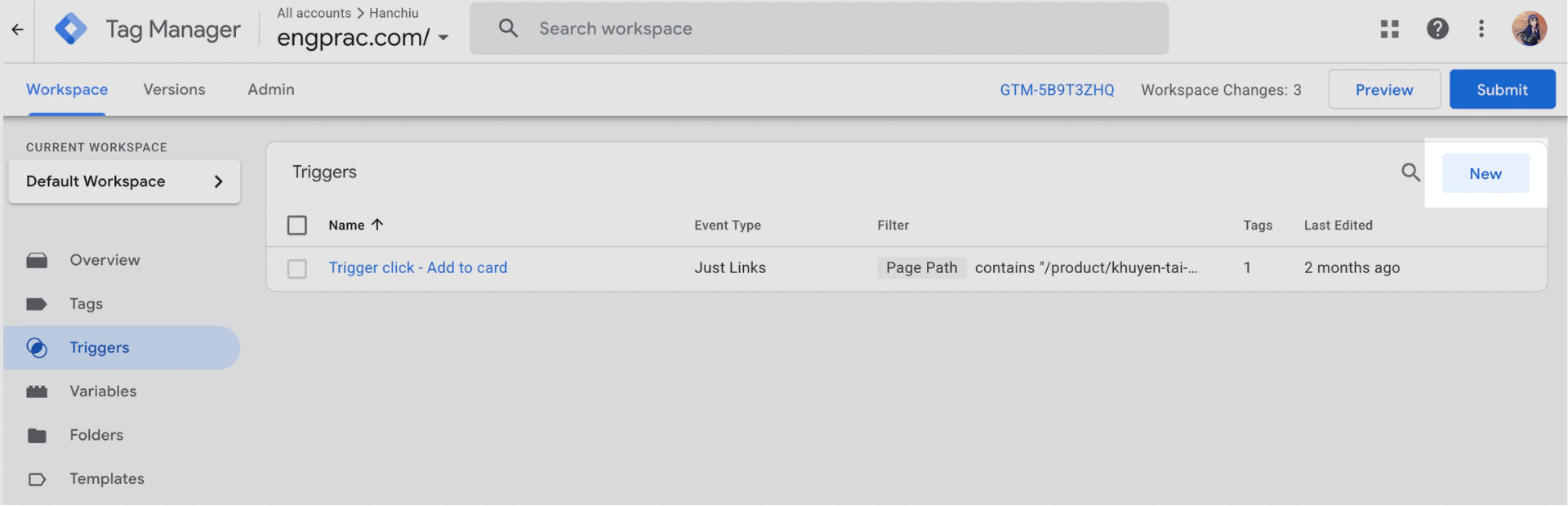
  <Step title="Tạo Trigger ">
    * Trong phần **Triggering**, chọn **New Trigger**. Đặt tên cho Trigger. Ví dụ:`Trigger summer-sale`
          <Frame>
            <img src="https://mintcdn.com/ftc/qw8pTSyx-xVxZPkE/images/thiet-lap-behavior-analytics-qua-google-tag-manager-5.png?fit=max&auto=format&n=qw8pTSyx-xVxZPkE&q=85&s=5f4e4b984b0b52f863ea53b3a983fa5a" alt="Thiet Lap Behavior Analytics Qua Google Tag Manager 5" width="1920" height="619" data-path="images/thiet-lap-behavior-analytics-qua-google-tag-manager-5.png" />
          </Frame>
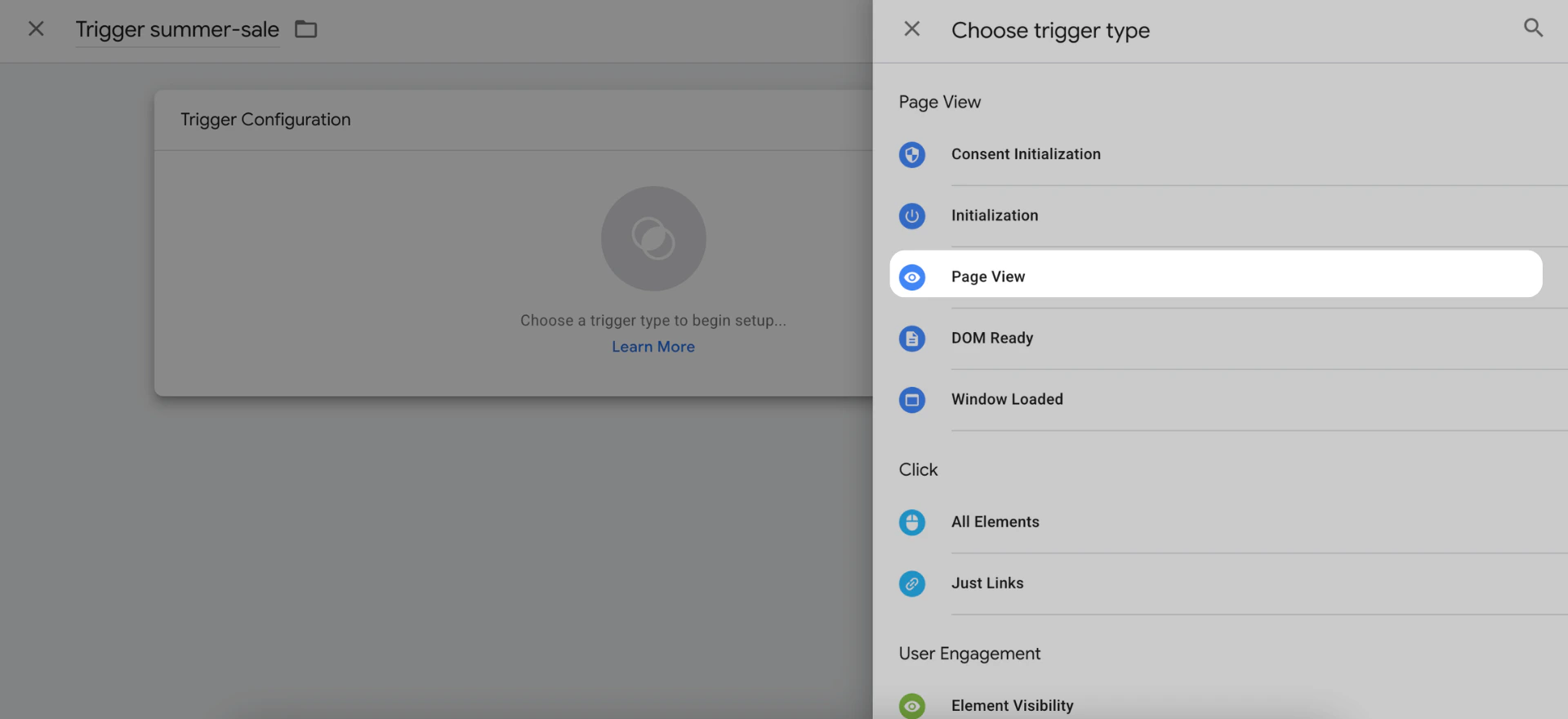
    * Trigger Type, chọn **Page View**. 

    <Frame>
      <img src="https://mintcdn.com/ftc/qw8pTSyx-xVxZPkE/images/thiet-lap-behavior-analytics-qua-google-tag-manager-6.png?fit=max&auto=format&n=qw8pTSyx-xVxZPkE&q=85&s=cbc488d23a9d98f1c3093c6373258944" alt="Thiet Lap Behavior Analytics Qua Google Tag Manager 6" width="1920" height="881" data-path="images/thiet-lap-behavior-analytics-qua-google-tag-manager-6.png" />
    </Frame>

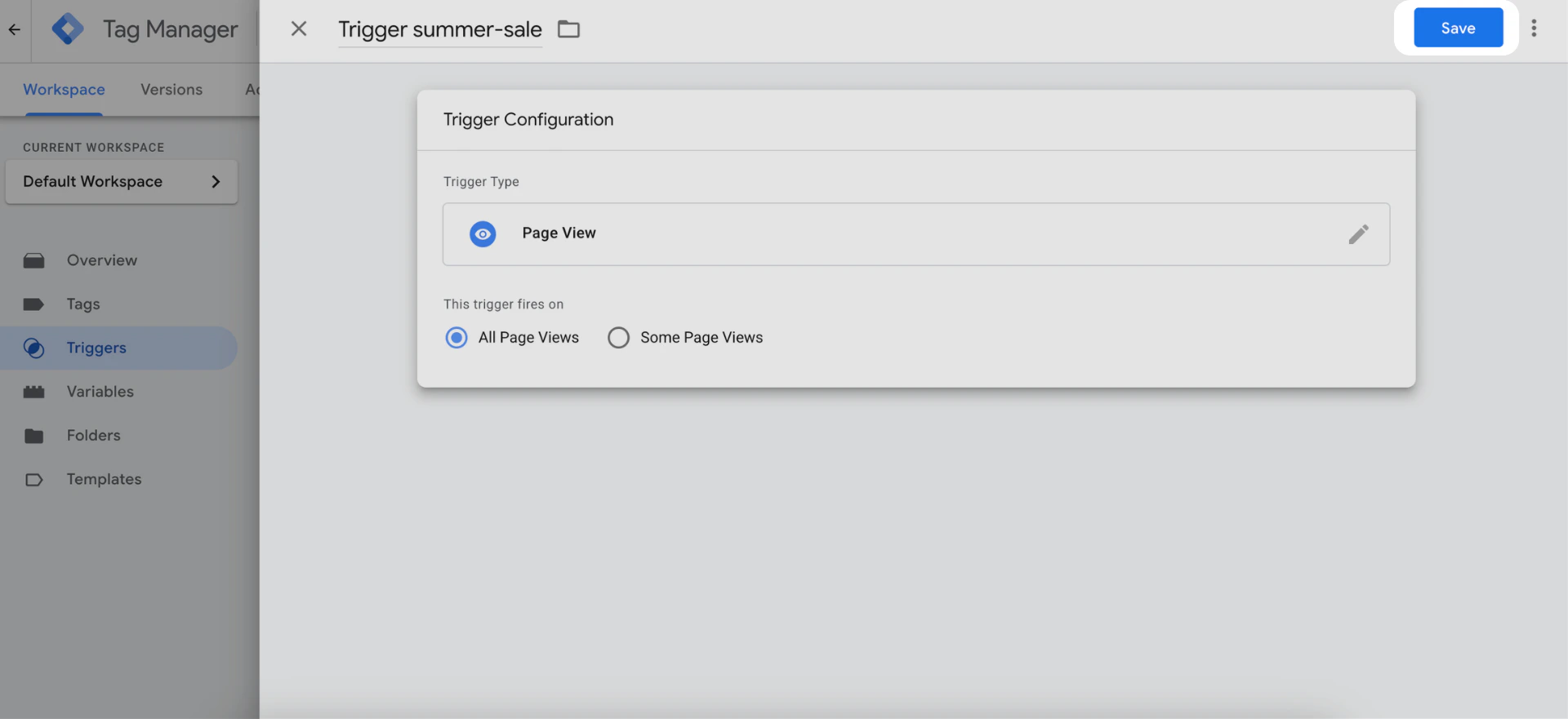
    * Nhấn **Save** lưu cấu hình.

    <Frame>
      <img src="https://mintcdn.com/ftc/qw8pTSyx-xVxZPkE/images/thiet-lap-behavior-analytics-qua-google-tag-manager-7.png?fit=max&auto=format&n=qw8pTSyx-xVxZPkE&q=85&s=deb766fe3aa453b6cf8d79ea5eba1d6a" alt="Thiet Lap Behavior Analytics Qua Google Tag Manager 7" width="1920" height="881" data-path="images/thiet-lap-behavior-analytics-qua-google-tag-manager-7.png" />
    </Frame>
  </Step>

  <Step title="Tạo Tag Mới">
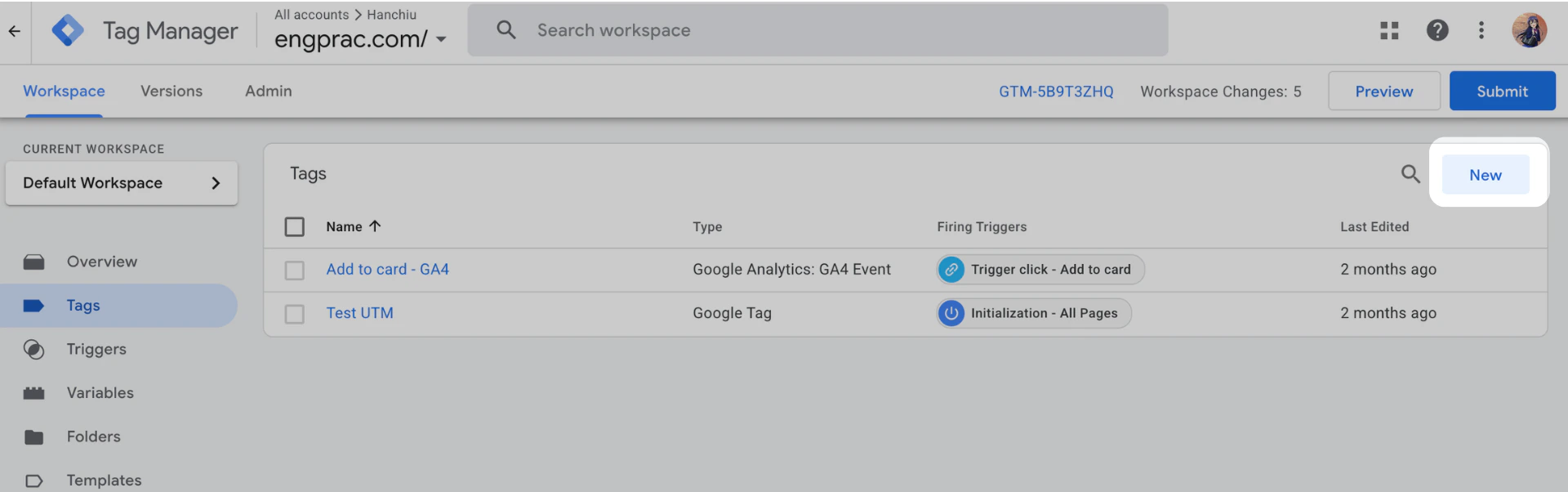
    * Vào **Tags → New**. Đặt tên tag: `Li2 Behavior Analytics.`
    <Frame>
      <img src="https://mintcdn.com/ftc/qw8pTSyx-xVxZPkE/images/thiet-lap-behavior-analytics-qua-google-tag-manager-8.png?fit=max&auto=format&n=qw8pTSyx-xVxZPkE&q=85&s=af8f235f4e6e1ffcbbc22663eaf4298d" alt="Thiet Lap Behavior Analytics Qua Google Tag Manager 8" width="1920" height="602" data-path="images/thiet-lap-behavior-analytics-qua-google-tag-manager-8.png" />
    </Frame>

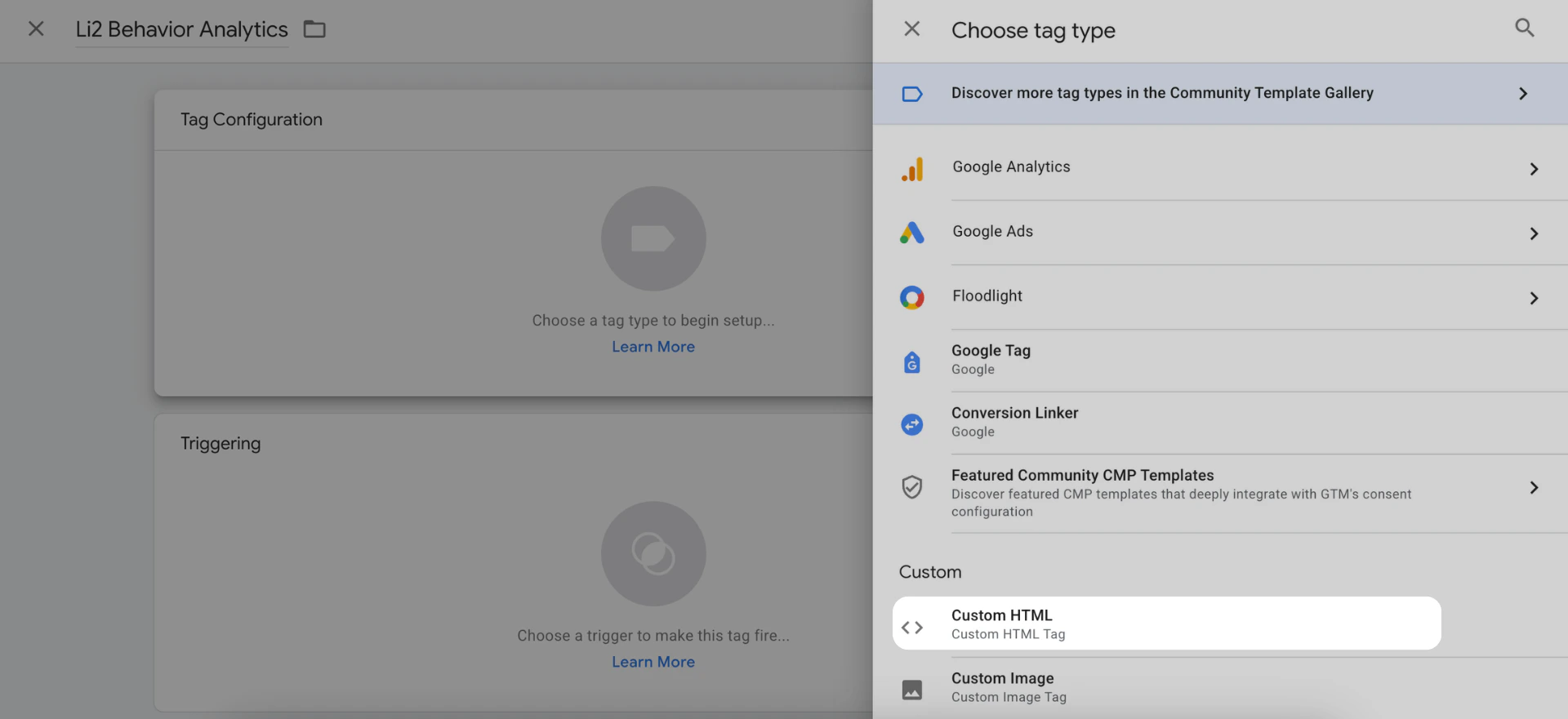
    * Trong **Tag Type**, chọn: **Custom HTML**
    <Frame>
      <img src="https://mintcdn.com/ftc/qw8pTSyx-xVxZPkE/images/thiet-lap-behavior-analytics-qua-google-tag-manager-9.png?fit=max&auto=format&n=qw8pTSyx-xVxZPkE&q=85&s=137a04b8b0a6bba6ba13c46eeceb5e41" alt="Thiet Lap Behavior Analytics Qua Google Tag Manager 9" width="1920" height="881" data-path="images/thiet-lap-behavior-analytics-qua-google-tag-manager-9.png" />
    </Frame>

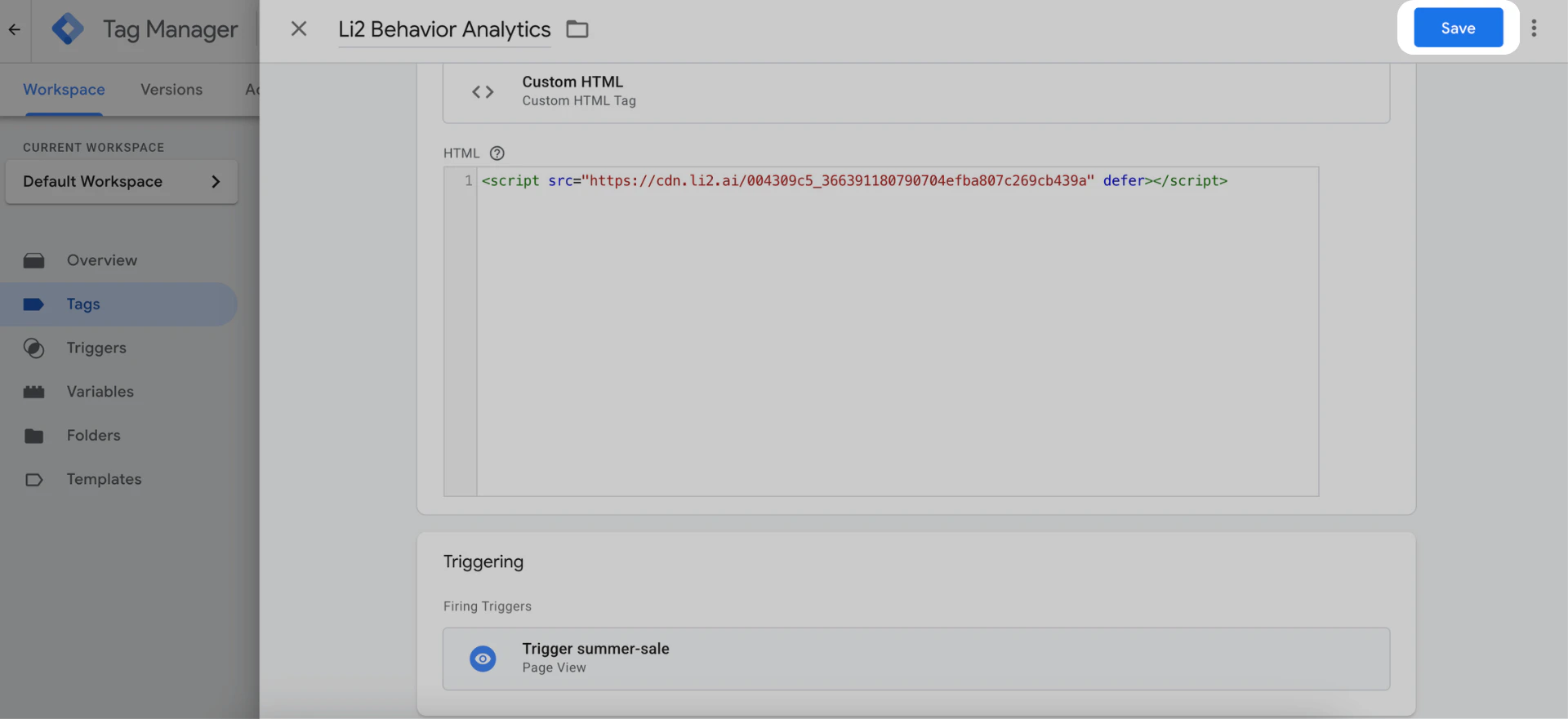
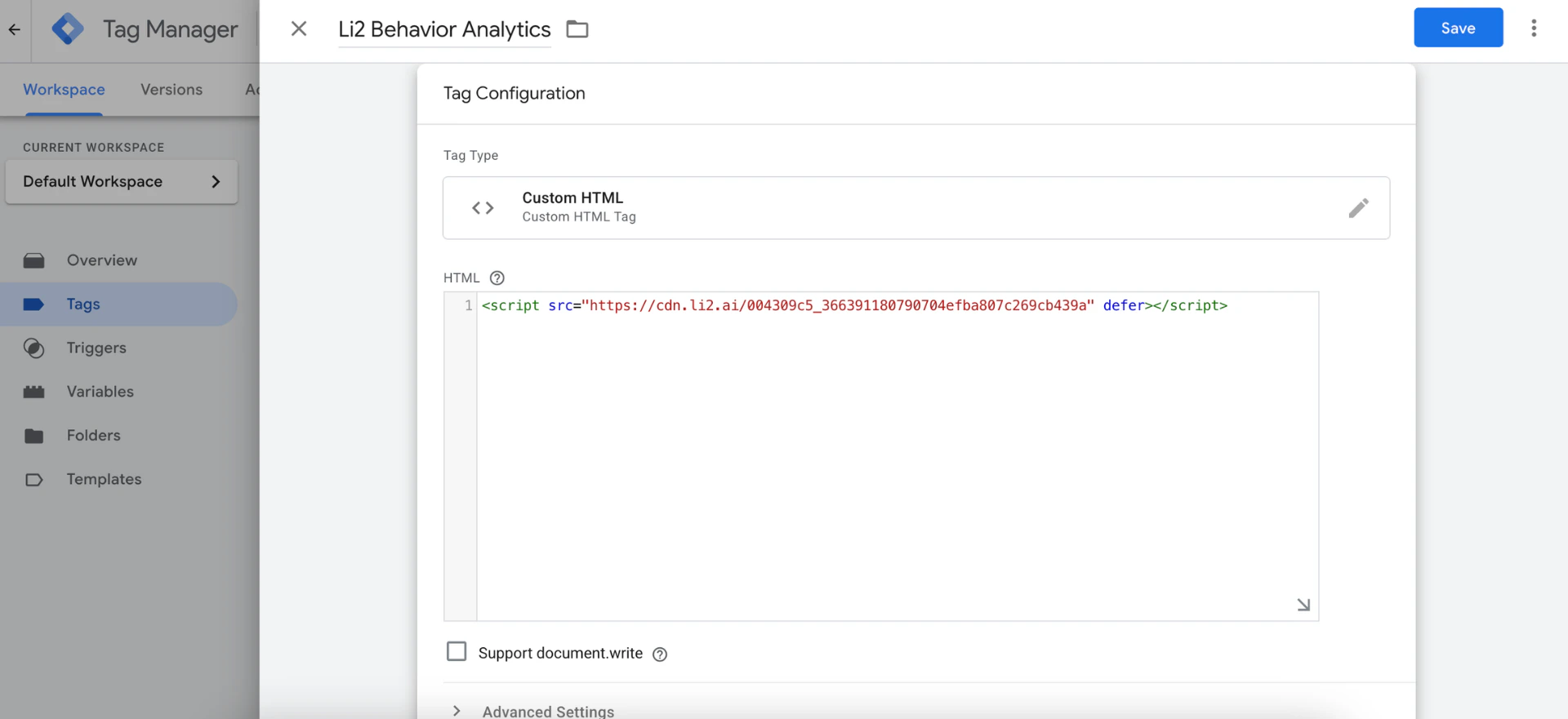
    * **HTML Content**: Dán SDK script Li2
    <Frame>
      <img src="https://mintcdn.com/ftc/qw8pTSyx-xVxZPkE/images/thiet-lap-behavior-analytics-qua-google-tag-manager-10.png?fit=max&auto=format&n=qw8pTSyx-xVxZPkE&q=85&s=809cb8ce5d9123d2f27aa316e4b585e9" alt="Thiet Lap Behavior Analytics Qua Google Tag Manager 10" width="1920" height="881" data-path="images/thiet-lap-behavior-analytics-qua-google-tag-manager-10.png" />
    </Frame>

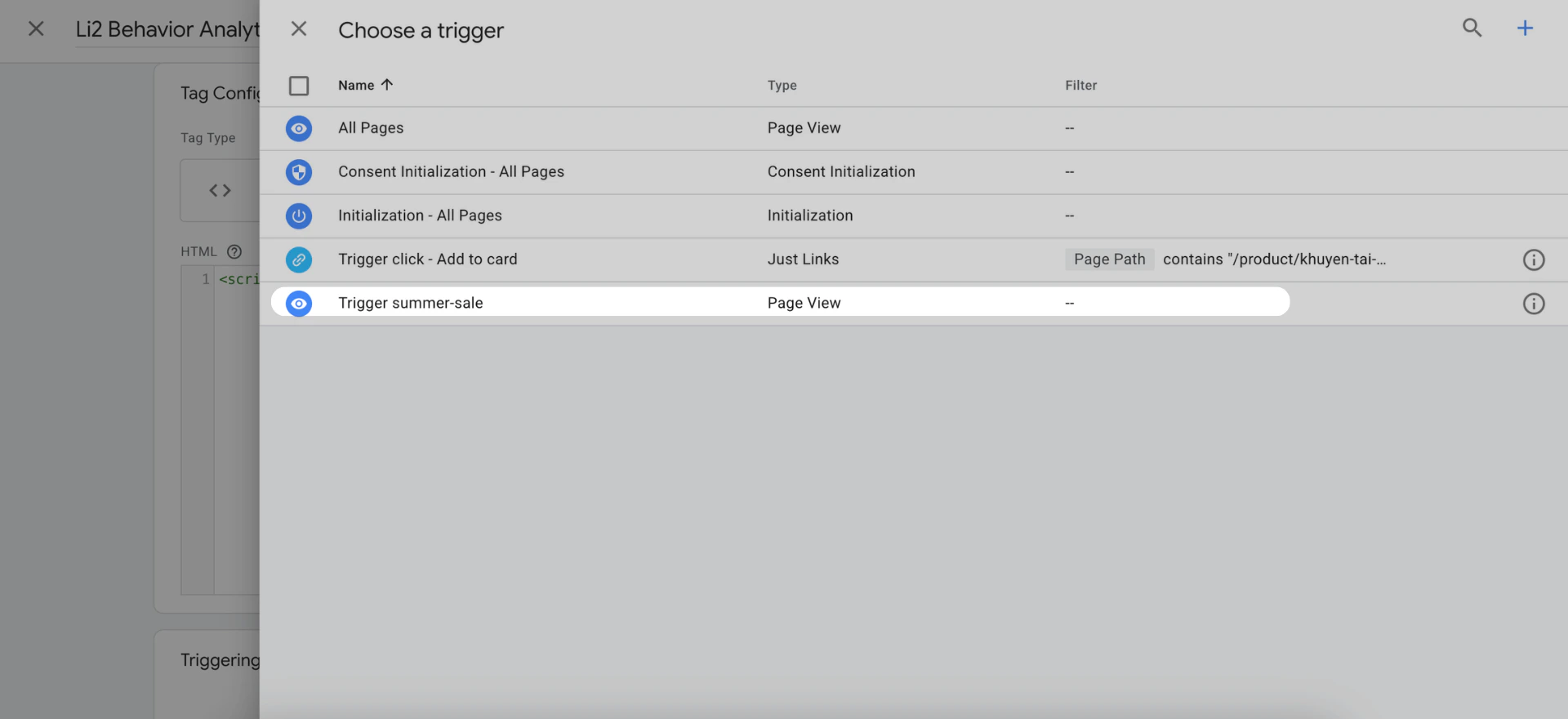
    * **Trigger:** chọn vừa tạo:`Trigger summer-sale`
    <Frame>
      <img src="https://mintcdn.com/ftc/qw8pTSyx-xVxZPkE/images/thiet-lap-behavior-analytics-qua-google-tag-manager-11.png?fit=max&auto=format&n=qw8pTSyx-xVxZPkE&q=85&s=0dbdc790289b8bc390ee7c9c4ffb0646" alt="Thiet Lap Behavior Analytics Qua Google Tag Manager 11" width="1920" height="881" data-path="images/thiet-lap-behavior-analytics-qua-google-tag-manager-11.png" />
    </Frame>

    * Nhấn **Save** lưu cấu hình.

    <Frame>
      <img src="https://mintcdn.com/ftc/qw8pTSyx-xVxZPkE/images/thiet-lap-behavior-analytics-qua-google-tag-manager-12.png?fit=max&auto=format&n=qw8pTSyx-xVxZPkE&q=85&s=54bc4f9cc465d0b10dd923ae4454488a" alt="Thiet Lap Behavior Analytics Qua Google Tag Manager 12" width="1920" height="881" data-path="images/thiet-lap-behavior-analytics-qua-google-tag-manager-12.png" />
    </Frame>
  </Step>

  <Step title="Publish Tag">
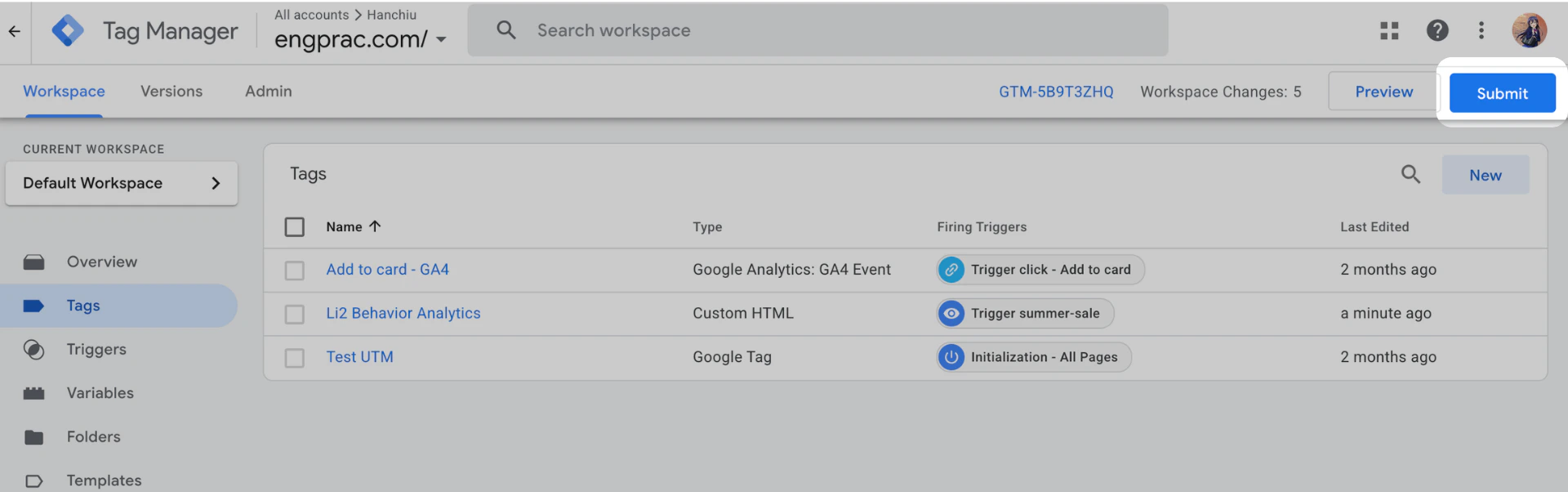
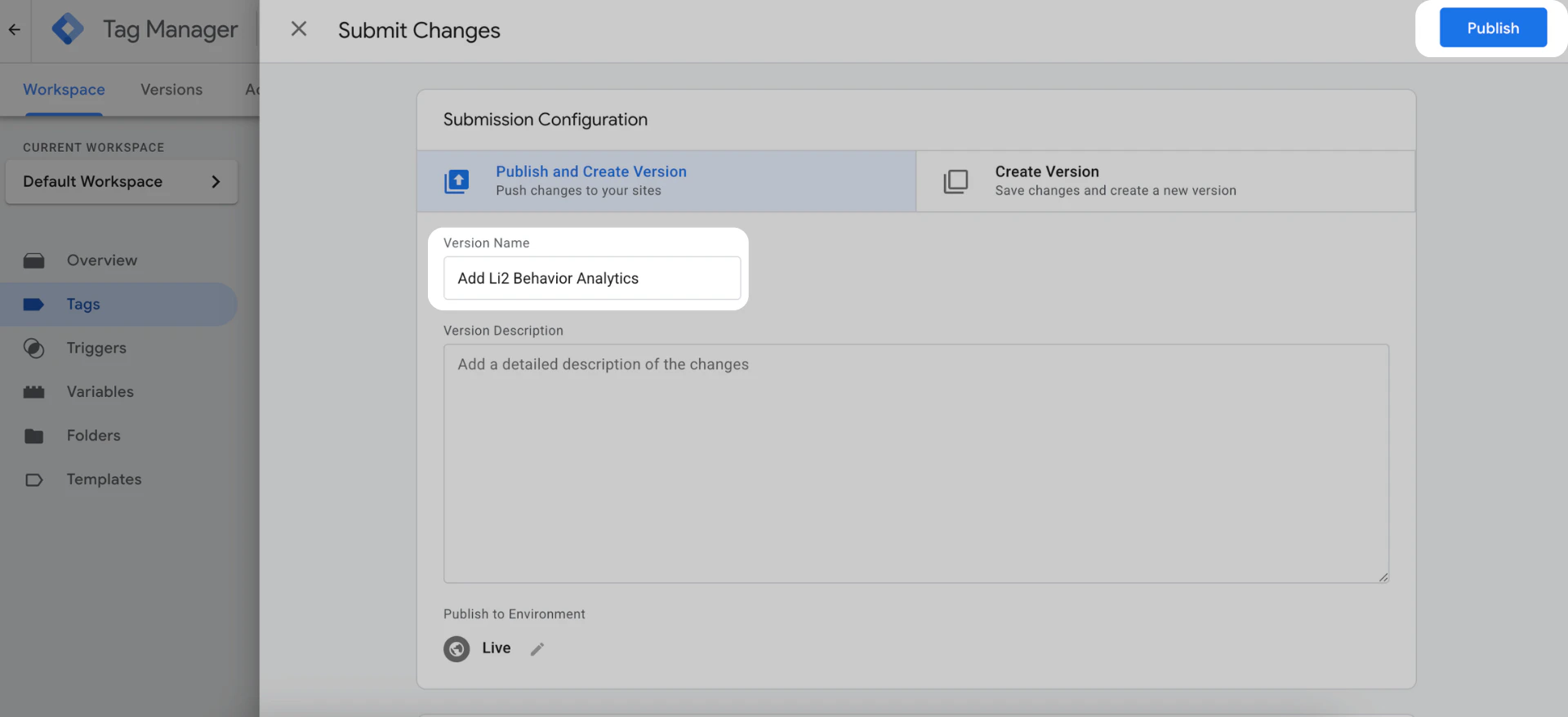
    * Nhấn **Submit**. Thêm tên version. Ví dụ: `Add Li2 Behavior Analytics`
    <Frame>
      <img src="https://mintcdn.com/ftc/qw8pTSyx-xVxZPkE/images/thiet-lap-behavior-analytics-qua-google-tag-manager-13.png?fit=max&auto=format&n=qw8pTSyx-xVxZPkE&q=85&s=26f33e5276ff4861c631e1736e8940d6" alt="Thiet Lap Behavior Analytics Qua Google Tag Manager 13" width="1920" height="602" data-path="images/thiet-lap-behavior-analytics-qua-google-tag-manager-13.png" />
    </Frame>

    * Sau đó nhấn **Publish**. GTM sẽ bắt đầu áp dụng SDK lên website.
    <Frame>
      <img src="https://mintcdn.com/ftc/7OeFl23nG50E8uhN/images/thiet-lap-behavior-analytics-qua-google-tag-manager-22.png?fit=max&auto=format&n=7OeFl23nG50E8uhN&q=85&s=14a50cac2cef00ce72ff3b1fed73463b" alt="Thiet Lap Behavior Analytics Qua Google Tag Manager 22" width="1920" height="878" data-path="images/thiet-lap-behavior-analytics-qua-google-tag-manager-22.png" />
    </Frame>
  </Step>
</Steps>

### Lựa chọn 2: SDK Li2 ghi nhận dữ liệu cho một URL duy nhất

<Steps>
  <Step title="Tạo Custom HTML Tag">
    Mở **Google Tag Manager** và chọn container của website.
  </Step>

  <Step title="Tạo Trigger ">
    * Trong phần **Triggering**, chọn New **Trigger**. Đặt tên cho Trigger. Ví dụ:`Trigger summer-sale`

    <Frame>
      <img src="https://mintcdn.com/ftc/qw8pTSyx-xVxZPkE/images/thiet-lap-behavior-analytics-qua-google-tag-manager-5.png?fit=max&auto=format&n=qw8pTSyx-xVxZPkE&q=85&s=5f4e4b984b0b52f863ea53b3a983fa5a" alt="Thiet Lap Behavior Analytics Qua Google Tag Manager 5" width="1920" height="619" data-path="images/thiet-lap-behavior-analytics-qua-google-tag-manager-5.png" />
    </Frame>

    * Trigger Type, chọn **Page View**. 

    <Frame>
      <img src="https://mintcdn.com/ftc/qw8pTSyx-xVxZPkE/images/thiet-lap-behavior-analytics-qua-google-tag-manager-6.png?fit=max&auto=format&n=qw8pTSyx-xVxZPkE&q=85&s=cbc488d23a9d98f1c3093c6373258944" alt="Thiet Lap Behavior Analytics Qua Google Tag Manager 6" width="1920" height="881" data-path="images/thiet-lap-behavior-analytics-qua-google-tag-manager-6.png" />
    </Frame>

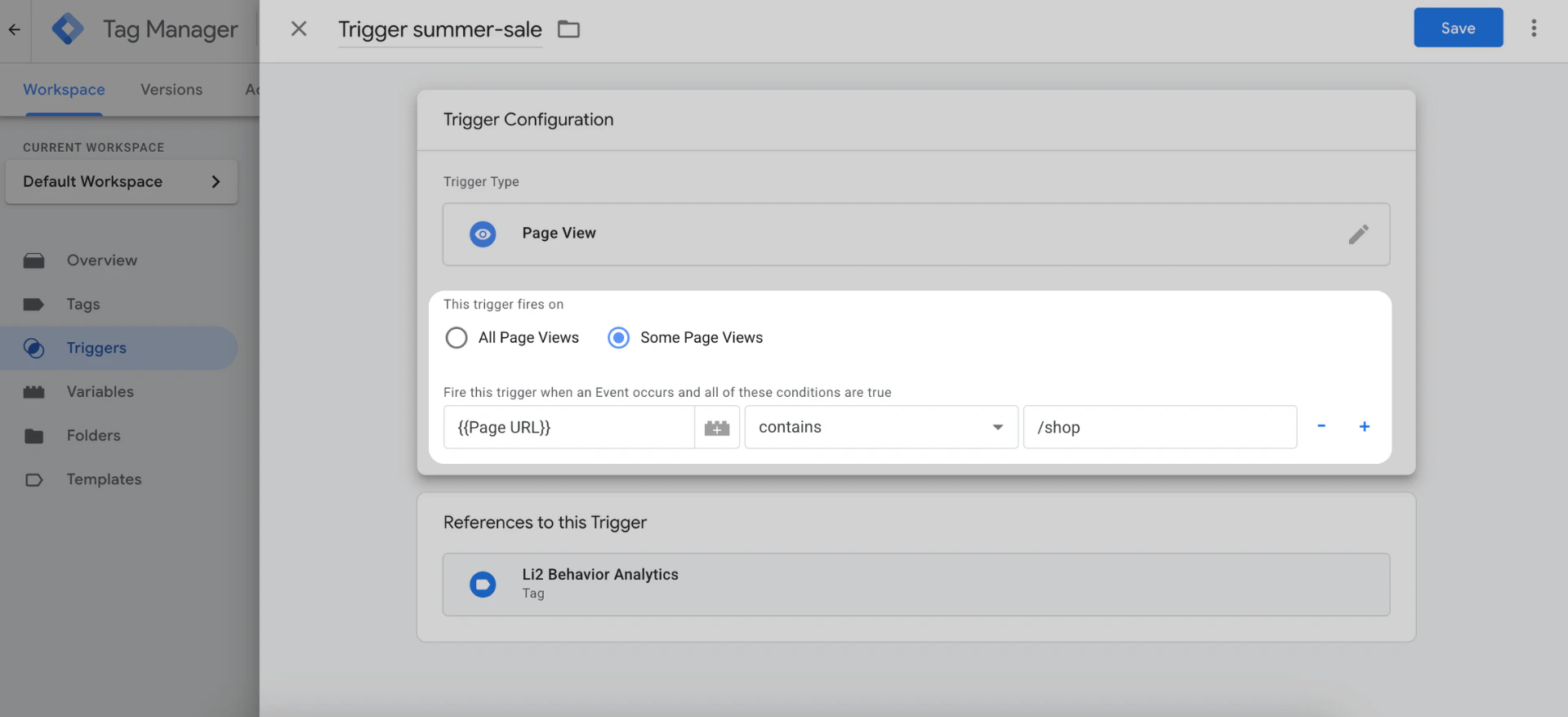
    * This trigger fires on, chọn **Some Page Views**
    * **Condition**: Page URL contains `/semmer-sale `(điều chỉnh theo URL của bạn).
    <Frame>
      <img src="https://mintcdn.com/ftc/qw8pTSyx-xVxZPkE/images/thiet-lap-behavior-analytics-qua-google-tag-manager-15.png?fit=max&auto=format&n=qw8pTSyx-xVxZPkE&q=85&s=89392bad416f351f909734b2d10f86c0" alt="Thiet Lap Behavior Analytics Qua Google Tag Manager 15" width="1920" height="878" data-path="images/thiet-lap-behavior-analytics-qua-google-tag-manager-15.png" />
    </Frame>

    * Nhấn **Save** lưu cấu hình.
  </Step>

  <Step title="Tạo Tag Mới">
    * Vào **Tags → New**. Đặt tên tag: `Li2 Behavior Analytics.`

    <Frame>
      <img src="https://mintcdn.com/ftc/qw8pTSyx-xVxZPkE/images/thiet-lap-behavior-analytics-qua-google-tag-manager-8.png?fit=max&auto=format&n=qw8pTSyx-xVxZPkE&q=85&s=af8f235f4e6e1ffcbbc22663eaf4298d" alt="Thiet Lap Behavior Analytics Qua Google Tag Manager 8" width="1920" height="602" data-path="images/thiet-lap-behavior-analytics-qua-google-tag-manager-8.png" />
    </Frame>

    * Trong **Tag Type**, chọn: **Custom HTML**

    <Frame>
      <img src="https://mintcdn.com/ftc/qw8pTSyx-xVxZPkE/images/thiet-lap-behavior-analytics-qua-google-tag-manager-9.png?fit=max&auto=format&n=qw8pTSyx-xVxZPkE&q=85&s=137a04b8b0a6bba6ba13c46eeceb5e41" alt="Thiet Lap Behavior Analytics Qua Google Tag Manager 9" width="1920" height="881" data-path="images/thiet-lap-behavior-analytics-qua-google-tag-manager-9.png" />
    </Frame>

    * **HTML Content**: Dán SDK script Li2

    <Frame>
      <img src="https://mintcdn.com/ftc/qw8pTSyx-xVxZPkE/images/thiet-lap-behavior-analytics-qua-google-tag-manager-10.png?fit=max&auto=format&n=qw8pTSyx-xVxZPkE&q=85&s=809cb8ce5d9123d2f27aa316e4b585e9" alt="Thiet Lap Behavior Analytics Qua Google Tag Manager 10" width="1920" height="881" data-path="images/thiet-lap-behavior-analytics-qua-google-tag-manager-10.png" />
    </Frame>

    * **Trigger:** chọn vừa tạo:`Trigger summer-sale`

    <Frame>
      <img src="https://mintcdn.com/ftc/qw8pTSyx-xVxZPkE/images/thiet-lap-behavior-analytics-qua-google-tag-manager-11.png?fit=max&auto=format&n=qw8pTSyx-xVxZPkE&q=85&s=0dbdc790289b8bc390ee7c9c4ffb0646" alt="Thiet Lap Behavior Analytics Qua Google Tag Manager 11" width="1920" height="881" data-path="images/thiet-lap-behavior-analytics-qua-google-tag-manager-11.png" />
    </Frame>

    * Nhấn **Save** lưu cấu hình.

    <Frame>
      <img src="https://mintcdn.com/ftc/qw8pTSyx-xVxZPkE/images/thiet-lap-behavior-analytics-qua-google-tag-manager-12.png?fit=max&auto=format&n=qw8pTSyx-xVxZPkE&q=85&s=54bc4f9cc465d0b10dd923ae4454488a" alt="Thiet Lap Behavior Analytics Qua Google Tag Manager 12" width="1920" height="881" data-path="images/thiet-lap-behavior-analytics-qua-google-tag-manager-12.png" />
    </Frame>
  </Step>

  <Step title="Publish thay đổi trong GTM">
    * Nhấn **Submit**. Thêm tên version.Ví dụ: `Add Li2 Behavior Analytics`

    <Frame>
      <img src="https://mintcdn.com/ftc/qw8pTSyx-xVxZPkE/images/thiet-lap-behavior-analytics-qua-google-tag-manager-13.png?fit=max&auto=format&n=qw8pTSyx-xVxZPkE&q=85&s=26f33e5276ff4861c631e1736e8940d6" alt="Thiet Lap Behavior Analytics Qua Google Tag Manager 13" width="1920" height="602" data-path="images/thiet-lap-behavior-analytics-qua-google-tag-manager-13.png" />
    </Frame>

    * Nhấn **Publish**. GTM sẽ bắt đầu áp dụng SDK Li2  trên URL này.

    <Frame>
      <img src="https://mintcdn.com/ftc/7OeFl23nG50E8uhN/images/thiet-lap-behavior-analytics-qua-google-tag-manager-22.png?fit=max&auto=format&n=7OeFl23nG50E8uhN&q=85&s=14a50cac2cef00ce72ff3b1fed73463b" alt="Thiet Lap Behavior Analytics Qua Google Tag Manager 22" width="1920" height="878" data-path="images/thiet-lap-behavior-analytics-qua-google-tag-manager-22.png" />
    </Frame>
  </Step>
</Steps>

## Bước 3: Xác minh cài đặt trong Li2

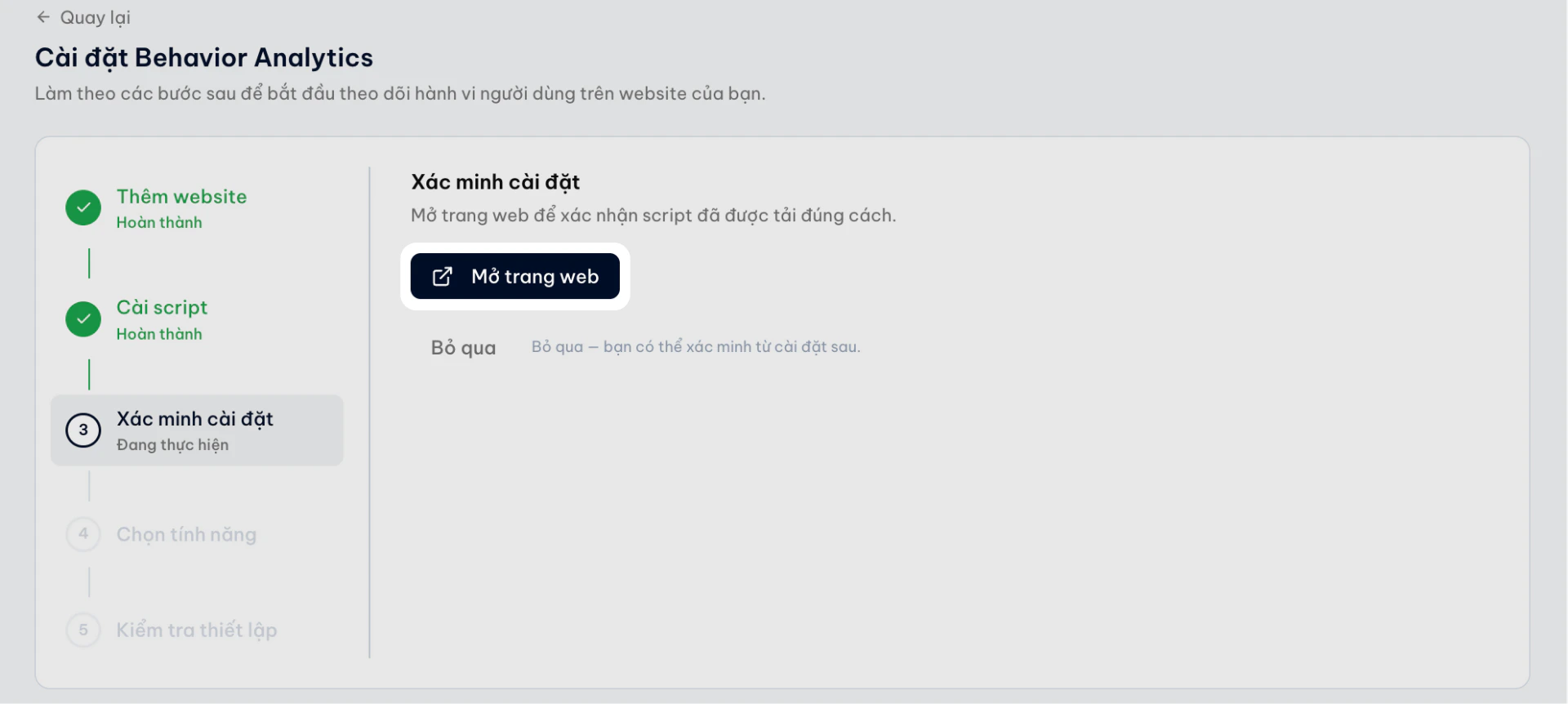
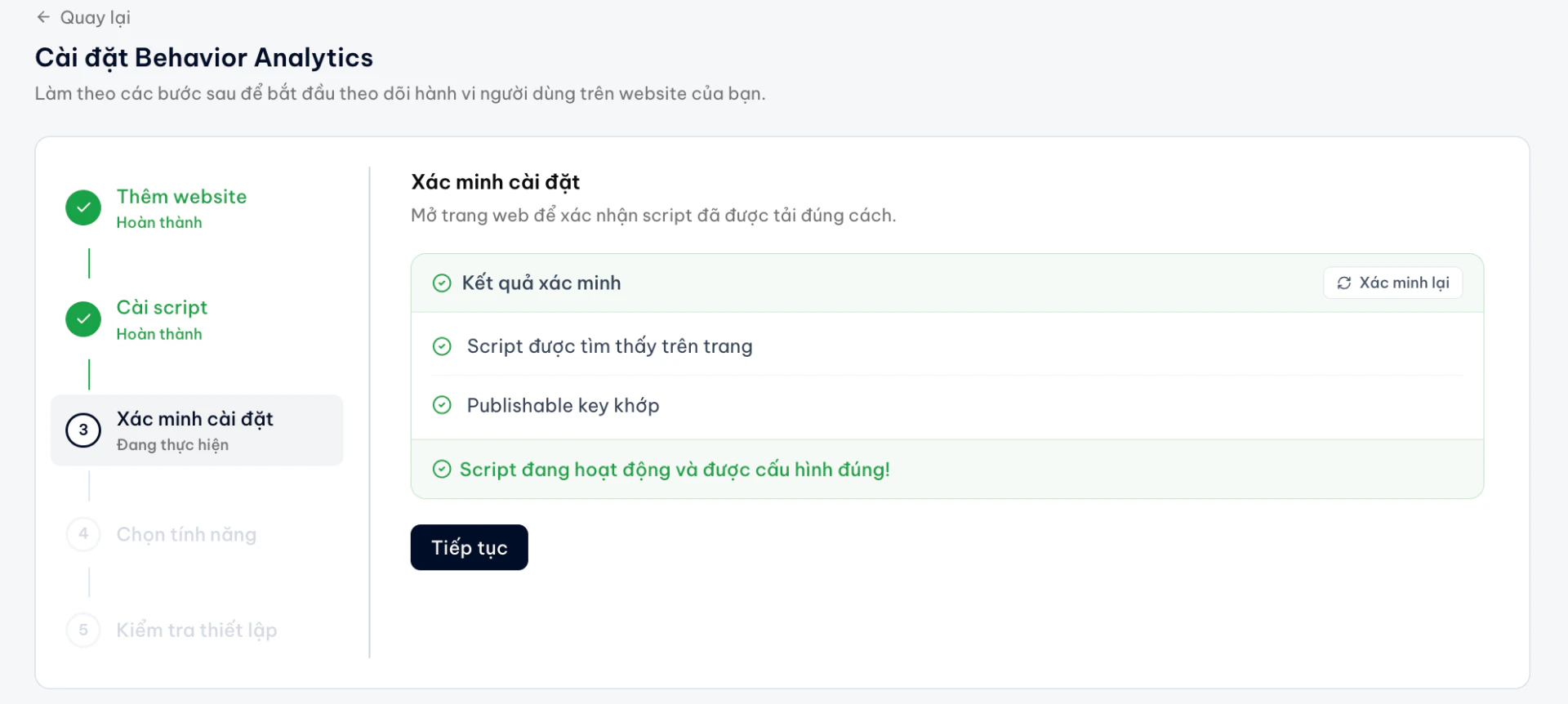
* Quay lại Li2. Tại bước **Xác minh cài đặt**, nhấn **Open Site to Verify.** 
<Frame>
  <img src="https://mintcdn.com/ftc/JrG8zafzbtEBiqNp/images/thiet-lap-behavior-analytics-qua-google-tag-manager-16.png?fit=max&auto=format&n=JrG8zafzbtEBiqNp&q=85&s=2ba026e875fdada21a6445b015f7a390" alt="Thiet Lap Behavior Analytics Qua Google Tag Manager 16" width="1920" height="862" data-path="images/thiet-lap-behavior-analytics-qua-google-tag-manager-16.png" />
</Frame>

* Khi xác minh hoàn tất, nhấn **Tiếp tục**.
<Frame>
  <img src="https://mintcdn.com/ftc/JrG8zafzbtEBiqNp/images/thiet-lap-behavior-analytics-qua-google-tag-manager-17.png?fit=max&auto=format&n=JrG8zafzbtEBiqNp&q=85&s=2f09d7b5bfd9dce591678856317b2429" alt="Thiet Lap Behavior Analytics Qua Google Tag Manager 17" width="1920" height="862" data-path="images/thiet-lap-behavior-analytics-qua-google-tag-manager-17.png" />
</Frame>

<Tip>
  Li2 sẽ tự động kiểm tra trạng thái cài đặt trên website.
</Tip>

## Bước 4: Chọn dữ liệu hành vi cần ghi nhận

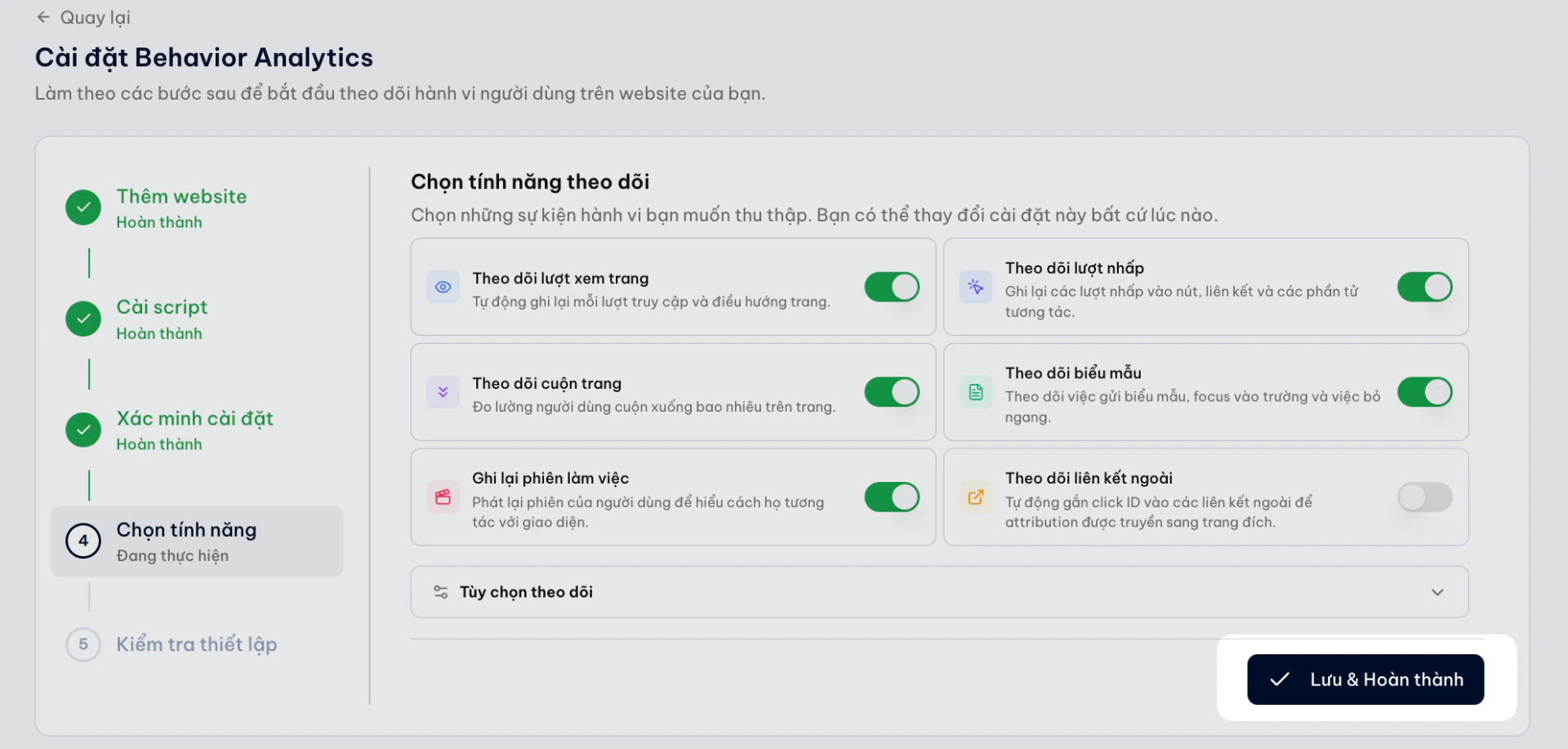
Sau khi xác minh thành công, Li2 sẽ hiển thị màn hình cấu hình Behavior Analytics. Bạn có thể bật hoặc tắt từng loại dữ liệu theo nhu cầu.

Tại màn hình **Chọn tính năng theo dõi**. Bạn có thể bật hoặc tắt từng nhóm dữ liệu:

1. **Theo dõi lượt xem trang:** Ghi nhận pageviews và điều hướng trang.
2. **Theo dõi lượt nhấp:** Ghi nhận tương tác với nút, liên kết và thành phần giao diện.
3. **Theo dõi cuộn trang:** Đo mức độ cuộn trên từng trang.
4. **Theo dõi biểu mẫu:** Ghi nhận tương tác với biểu mẫu và trường nhập liệu.
5. **Ghi lại phiên làm việc:** Cho phép xem lại hành trình tương tác trên website.
6. **Theo dõi liên kết ngoài:** Ghi nhận lượt chuyển sang website khác.

Bạn có thể thay đổi các thiết lập này bất kỳ lúc nào. Sau khi hoàn tất, nhấn **Lưu & Hoàn thành**
<Frame>
  <img src="https://mintcdn.com/ftc/7OeFl23nG50E8uhN/images/thiet-lap-behavior-analytics-qua-google-tag-manager-23.png?fit=max&auto=format&n=7OeFl23nG50E8uhN&q=85&s=53319d29e0e3f9e4b0f3969b479d7d07" alt="Thiet Lap Behavior Analytics Qua Google Tag Manager 23" width="1920" height="917" data-path="images/thiet-lap-behavior-analytics-qua-google-tag-manager-23.png" />
</Frame>

## Bước 5: Kiểm tra dữ liệu

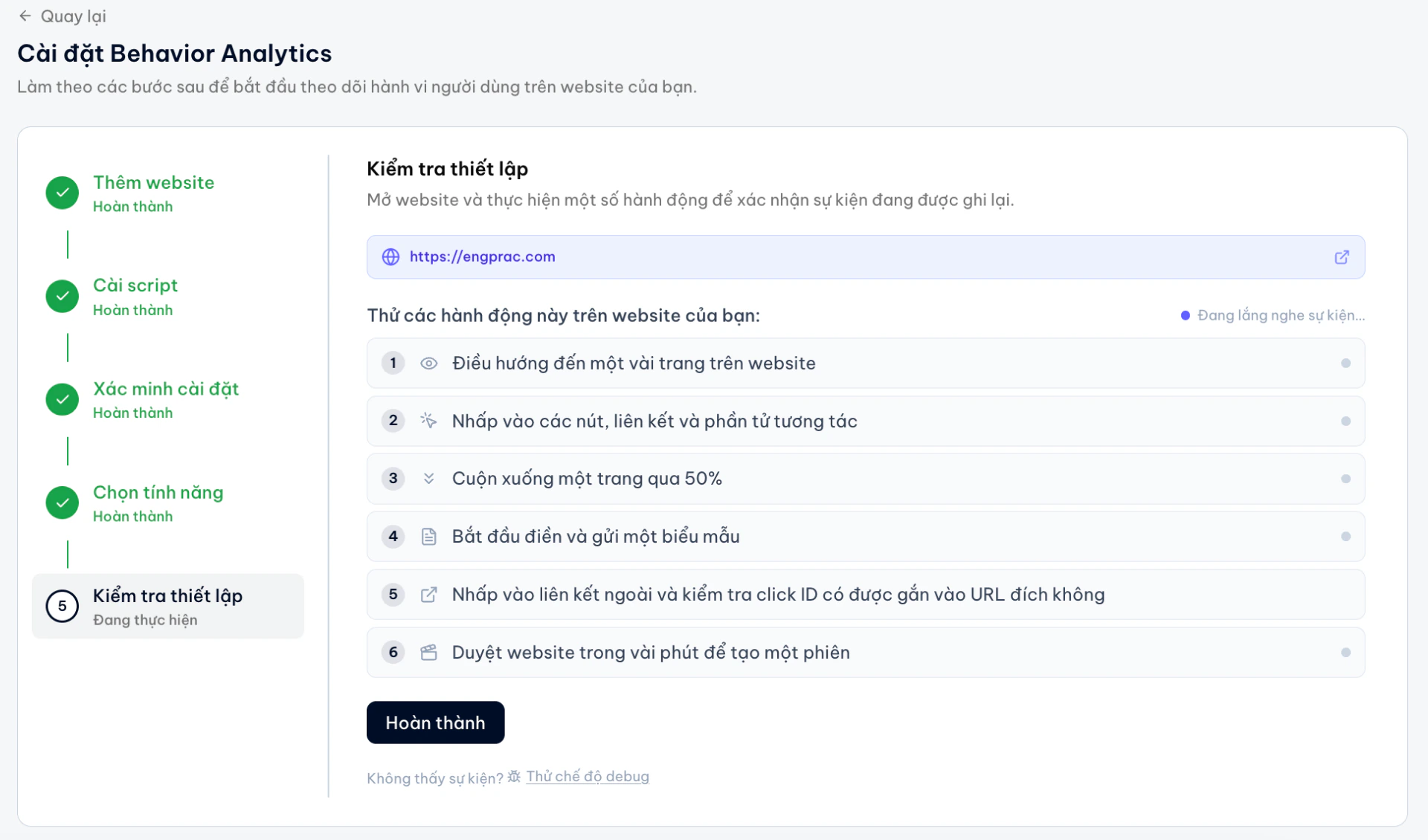
Mở website của bạn và thực hiện một vài thao tác đơn giản như:

* Mở nhiều trang
* Nhấp vào nút hoặc liên kết
* Cuộn trang
* Điền biểu mẫu
<Frame>
  <img src="https://mintcdn.com/ftc/JrG8zafzbtEBiqNp/images/thiet-lap-behavior-analytics-qua-google-tag-manager-19.png?fit=max&auto=format&n=JrG8zafzbtEBiqNp&q=85&s=4e2f5ffdb63ab145f55740e6ed9ed8bd" alt="Thiet Lap Behavior Analytics Qua Google Tag Manager 19" width="1920" height="1130" data-path="images/thiet-lap-behavior-analytics-qua-google-tag-manager-19.png" />
</Frame>

Quay lại Li2 để kiểm tra dữ liệu bắt đầu xuất hiện.

<Accordion title="Nếu chưa thấy dữ liệu, kiểm tra">
  * GTM container đã publish chưa
  * SDK script đã được paste đúng chưa
  * trigger đã cấu hình đúng chưa
  * website đã tải GTM container chưa
</Accordion>

## Hoàn tất

Bạn đã thiết lập thành công Behavior Analytics Li2 qua Google Tag Manager.Từ đây, Li2 có thể bắt đầu ghi nhận dữ liệu hành vi website để hỗ trợ:

* Heatmap
* Funnel analysis
* Session replay
* Form analytics
* Customer journey analysis

Bạn có thể cập nhật trigger trong GTM hoặc điều chỉnh cấu hình behavior trong Li2 bất kỳ lúc nào.